A small page update can affect what shoppers understand, whether they trust the store, and how easily they can complete a task. Editing an About page, shipping message, or campaign landing page should be more deliberate than changing a sentence.
Learning how to edit pages in shopify starts with identifying what you are changing. Shopify separates page content, product data, navigation, policies, and theme layout, so using the right area prevents accidental storefront changes.

Locating Content Assets Within the Core Ecosystem
Before diving into how to edit pages in shopify, you must accurately isolate the underlying architecture of the content asset you want to update. A standard content layout, product record, collection matrix, store policy, or navigation menu each exist within distinct database sectors in the backend.
| What You Need to Change | Where to Edit It | Example |
|---|---|---|
| Standard content page | Online Store > Pages | About, contact, shipping, or returns page |
| Product information | Products | Title, description, price, media, or variants |
| Collection information | Products > Collections | Collection title, description, image, or rules |
| Blog content | Content > Blog posts | Guide, announcement, or article |
| Store policy | Settings > Policies | Refund, privacy, shipping, or terms policy |
| Store navigation | Content > Menus | Header, footer, and menu links |
Collection descriptions are edited in the collection record, while layout is controlled by the assigned theme template. Check whether a change affects one resource or a shared menu, section, or template before saving.
How to Edit Pages in Shopify From the Admin
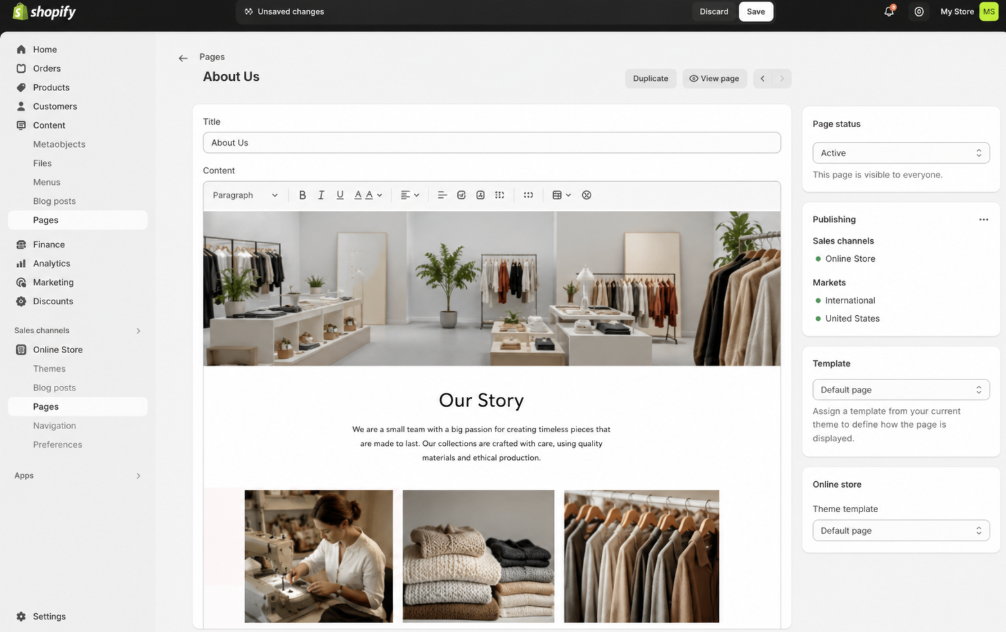
For standard, static content layouts, how to edit pages in shopify begins at Online Store > Pages. Select the page title, update the content or settings, choose the correct visibility, and save.
A Shopify page works within a content management system. Use the rich-text editor for clear headings, links, images, tables, or embedded content, but keep each page focused on one job. Preview formatting before saving when a page includes tables, images, or embedded content.
Keep compatibility, care, warranty, or size guidance on the relevant product page or product template. Placing product-specific details on a generic policy page can create conflicting information across the catalogue.
How to Edit Pages in Shopify With the Theme Editor
Go to Online Store > Themes, select Edit theme, then use the page or template selector to find the layout you need to change.
The theme editor controls sections and blocks, including banners, FAQs, forms, featured collections, and image areas. Use it when a page needs a new section order, a different image, or a better mobile layout rather than when only its written content needs updating.
Check the page on desktop and mobile. A wide hero image, oversized heading, or stack of promotions can make a page harder to use on a phone. Mobile-focused Shopify page design can help when the problem is visual structure rather than wording.
How to Edit Pages in Shopify With Templates
Templates keep similar resources consistent. When learning how to edit pages in shopify through templates, confirm whether the template is shared by several pages, products, collections, blogs, or posts.
Changing a shared template can update every assigned resource. Create a separate template when one campaign page or product group needs a different section arrangement, then assign it only to the relevant resource.
For pages that need conditional content, calculators, custom forms, or extra data fields, custom shopify page features are vastly superior to forcing theme components past their operational limits.
How to Edit Pages in Shopify for Search and Navigation
How to edit pages in shopify also includes what people see before they reach the page. In the page editor, review the search-engine listing fields for the page title, meta description, and URL handle.
Use a title that states the page purpose. The meta description should summarize what shoppers will find, not repeat the same phrase. Change a published URL only when needed. Afterward, create or confirm a redirect under Content > Menus > URL redirects, then test the old address.
A new page is not automatically added to the header or footer. Check the relevant menu under Content > Menus and add or update the link where shoppers should find it. As your catalog inventory expands, executing professional shopify site-structure development ensures your internal link equity flows cleanly through descriptive menus, preventing dead ends and keeping the store path indexable for search crawlers.
Preview Changes Before Publishing
How to edit pages in shopify safely means reviewing the customer view before a change goes live. Check the final page on desktop and mobile, test every new link, and confirm that the correct template is assigned.
For larger layout changes, use the theme editor preview before publishing. Check key sections, product cards, menu links, forms, and app blocks so a page-level change does not create a problem elsewhere in the storefront.
Do not change policy text, delivery claims, return terms, or promotional messages without confirming that they match current operations.
Conclusion: How to Edit Pages in Shopify With Control
Good page editing means selecting the right Shopify area, making focused changes, checking the customer view, and keeping navigation and search details accurate. Start with content, use templates carefully, and review the impact of shared layouts before publishing.
Zissu Global helps scaling merchants architect robust storefront systems, engineering pristine page layouts, custom data schemas, and optimized store navigation paths that align perfectly with your core business logic.