Knowing how to create a new template in Shopify gives a store more control than editing the default product or page layout for every customer. A template lets you create a different arrangement of sections and blocks for a defined group of products, collections, pages, blogs, or blog posts while keeping the rest of the storefront unchanged.
The point is not to make every page unique. It is to give genuinely different shopping or content situations the layout they need. A subscription product may need delivery details near the purchase area, a wholesale collection may need a different introductory section, and a campaign page may need a shorter path to a focused offer.
How to Create a New Template in Shopify to Solve Specific Design Exceptions
The first decision in how to create a new template in Shopify is not inside the theme editor. It is deciding what the new layout must accomplish that the default template cannot.
A separate template is useful when a group of pages needs a lasting structural difference. Examples include:
- A product group with a size guide, ingredient panel, or compatibility information
- A limited collection that needs an editorial introduction and different merchandising
- A landing page that supports a specific campaign, audience, or purchase path
- A blog article type that uses a featured resource, author bio, or related-product section
- A not-for-sale product layout that shows product history without an active purchase area
Do not create a template simply to change one line of copy or swap one image. Use product data, sections, blocks, or theme settings when those tools solve the need without creating another layout to manage.
Name the Template for Its Job, Not Its Appearance
Good names reduce mistakes when several people work in the store. “Product-special” or “Page-v2” does not tell the team why a template exists. “Product-gift-set,” “Collection-seasonal-edit,” or “Page-wholesale-info” gives future users a clearer signal.
Before building, write a short brief:
| Template Decision | Example |
|---|---|
| Resource type | Product |
| Audience or use case | Subscription customers |
| Difference from default | Delivery-frequency details, FAQ, and subscription explanation |
| Pages or products that will use it | All refill-plan products |
| Owner | Ecommerce manager |
| Review point | Before the next subscription campaign |
This small record keeps a new layout from becoming an unexplained theme artifact six months later. It also makes it easier to decide whether a new template is still necessary after a promotion ends.
Build From the Closest Existing Layout
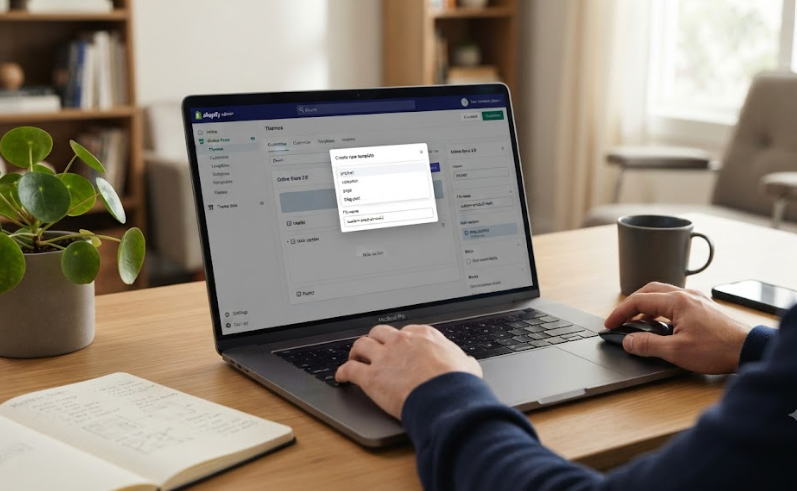
The actual process for how to create a new template in Shopify begins in the theme editor:
- Go to Online Store > Themes in Shopify admin.
- Find the theme you want to edit and click Edit theme.
- Open the Home page drop-down menu, select the relevant template type, and choose Create template.
- Enter a unique template name.
- In Based on, choose the existing template that is the best starting point.
- Select Create template.
Starting from the closest existing layout reduces unnecessary rebuilding. A campaign product template might begin with the default product template, while a wholesale product template might be based on another layout that already has the right purchasing and information structure.
The sections and settings you can use depend on the active theme. Shopify templates are made of sections and blocks, so your new template can be shaped by adding, removing, rearranging, and configuring the components your theme supports.
Change Only What the New Template Needs
The strongest template edits are intentional. Retain the sections that already work, then alter the parts that matter for the new use case.
Using a modular design architecture ensures that reusable sections make your storefront easier to adapt without rebuilding code loops from scratch. Shopify’s layout framework allows you to lock your core product configurations while adjusting the content stack and calls to action for targeted customer segments.
For example, a gift-set product template might place the bundle contents and delivery cutoff near the price, add a gift-message block, and reduce secondary product education. A technical product template may put compatibility data, downloadable specifications, and a contact prompt near the variant selector.
Avoid adding every available section simply because the new template is empty or different. A template should solve a specific problem, not become a second homepage inside a product or collection page.
A coherent Shopify template system can help a growing store keep recurring layouts consistent while giving important product groups the information they need.
Preview With Real Content Before Making an Assignment
Creating a template does not automatically assign it to a product, page, collection, blog, or blog post. In the theme editor, you can preview the template with a compatible resource, which is the safest way to inspect the layout before changing the live assignment.
Check it with an item that has realistic content. A placeholder product may not reveal whether long titles, several variants, many images, product reviews, or large metafield content will disrupt the layout.
When the preview is ready, assign the template in Shopify admin:
| Resource | Where to Assign the Template |
|---|---|
| Product | Products > selected product > Theme template |
| Collection | Products > Collections > selected collection > Theme template |
| Page | Online Store > Pages > selected page > Theme template |
| Blog | Content > Blog posts > Manage blogs > selected blog > Theme template |
| Blog post | Content > Blog posts > selected post > Theme template |
Products and collections can also be assigned in bulk when a whole group needs the same template. Use bulk assignment only after checking one or two representative items first. A template that works for one product may not work for every variant, image set, or product-description length in the group.
Review the Page Like a Shopper, Not a Theme Editor
The key test is not whether the editor saves. It is whether the page helps a real shopper make the next decision.
Open the assigned page on desktop and mobile. Check the first screen, section order, image behavior, purchase actions, product details, app blocks, links, and the path from the page to cart. Look for content that is missing, repeated, poorly spaced, or hidden behind a long stack of sections.
This is especially important for product templates. Confirm that the title, price, variants, availability, key details, add-to-cart control, shipping or return guidance, and any required subscription or bundle logic remain clear.
When a new template requires unique product logic, complex data connections, or functionality that a theme cannot support cleanly, custom Shopify feature development may be more reliable than trying to force the behavior through repeated manual layout edits.
Treat Template Count as a Maintenance Decision
The question of how to create a new template in Shopify should include a second question: will the store still need it six months from now?
Create templates for stable differences, such as a defined product family, recurring campaign format, wholesale channel, or content type. For temporary changes, use existing sections, blocks, metafields, or scheduled content updates where possible.
Maintain a simple list of template names, their purpose, the resource groups assigned to them, and the person responsible for future edits. That makes seasonal cleanup easier and reduces the chance of changing a template that still controls live pages.
Conclusion: How to Create a New Template in Shopify
How to create a new template in Shopify is a matter of defining a real layout need, choosing the correct starting template, making focused section changes, assigning it to the right resources, and testing it with real store content. The goal is not more templates. It is clearer page structures that support specific customer decisions without making the theme difficult to maintain.
For stores that need a durable template strategy rather than a collection of one-off layouts, Zissu Global can shape the theme structure around the way products, content, and customer journeys actually work.